Notes
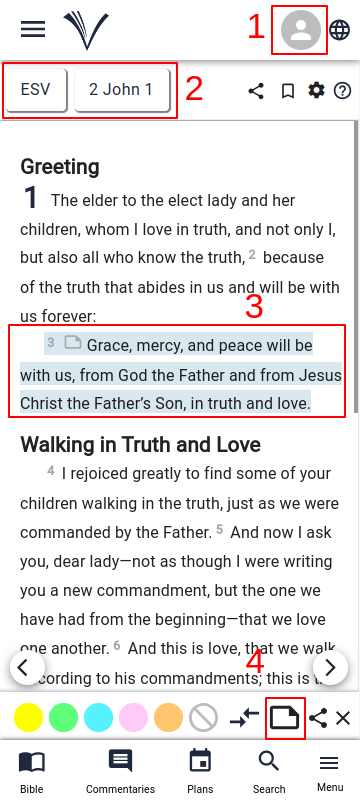
To access the Notes feature, users must sign into (1) VachanOnline.com. ( See how to Sign In )
The user must select the Bible version, Bible book and chapter by using the drop-down menus (2).
The user can click on any verse (3) for which they wish to make notes and then select Notes Icon (4). A pop-up window for taking notes appears.
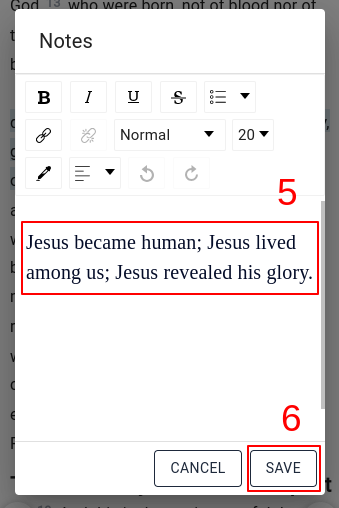
Notes can be taken by the user (5) and saved (6) for later use.
It includes a rich text editor for formatting text, adding media, and customizing documents with fonts and colors.
- When notes for a verse have been saved, the Notes icon shows before the verse (7).
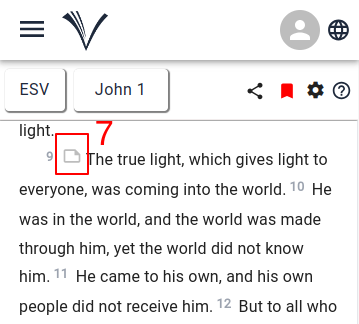
- A pop-up dialogue box will appear when the user click the note icon.
To access the Notes created earlier the user must click on the Drawer Menu and select Notes.
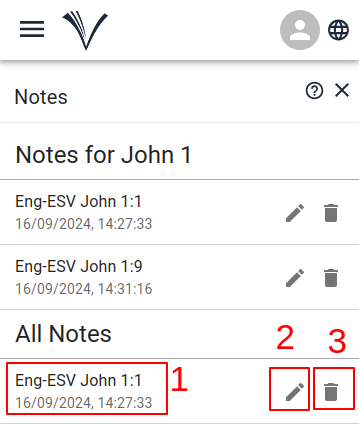
The list of verse with notes appear.
- By clicking on the verse (1), the user will be directed to the verse on the Study Bible page.
- To edit the note the user must click the Edit icon (2).
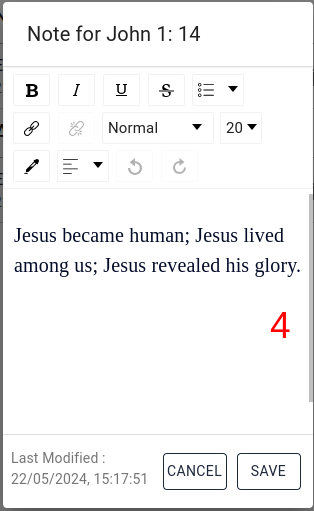
- This opens up a popup window where the note can be edited (4) and after editing it the user can save the changes or close without saving the changes by clicking cancel.
- Using the delete icon (3), the notes can be deleted.