Reading Plans
On the Study Bible page, the user can access the M'Cheyne plan by clicking on the Reading Plans icon (1).
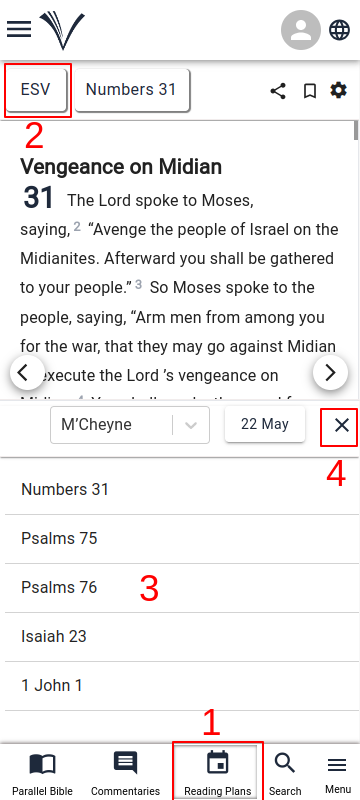
The user can select the Bible language and version from the drop-down menu (2).
A list of readings for the current date and language (3) appears at the bottom pane. Users can utilize the calendar to adjust the date and select readings corresponding to that day.
To read a chapter, the user must select the readings one by one from the list. The required Bible chapter appears on the top pane.
It is possible to read the entire Bible in a year with the M'Cheyne Reading Plan.
To exit the Reading Plans mode, the user can click the close button on the right (4).
After the user signs in, they can initiate a Reading Plan by selecting the option to start one. This feature allows users to begin a structured reading schedule, helping them manage their Bible study more effectively.
Start a Reading Plan
- The user should sign in to Vachan Online account.
- Go to the Study Bible page
- Select reading plans (1)
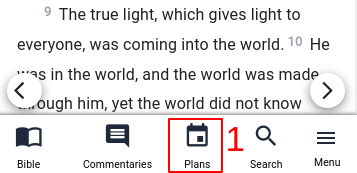
- Click on Start Plan (2)
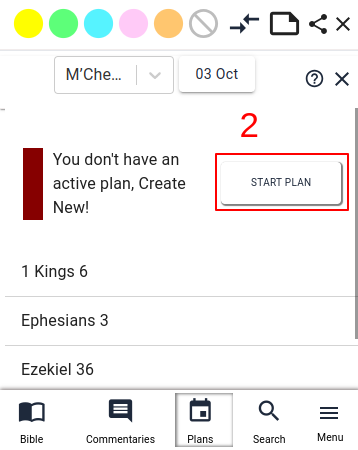
- Enter a name for their plan in the dialog box (3)
- The user needs to choose the date on which they want to start the plan (4)
- Click on Start Plan to begin (5)
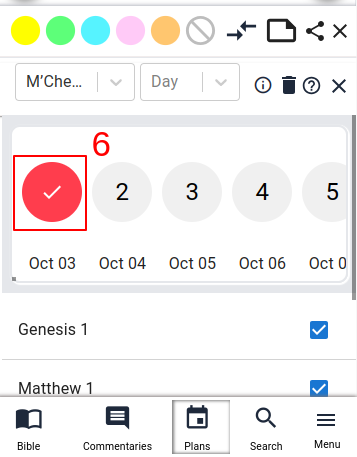
- The reading progress will be tracked with a tick on the corresponding date each day (6)
Delete a Plan
- Go to the Reading Plans section on the Study Bible page
- Locate the plan you want to delete
- Click on the delete icon (1) next to the plan.
- Confirm the deletion when the message "Are you sure you want to delete the - plan?" appears by selecting Delete (2)
Modify a Plan
- Go to the Reading Plans section and find the plan you wish to modify
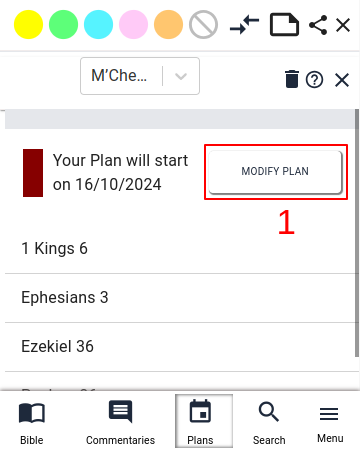
- Click on Modify Plan (1)
- In the dialog box, select a new start date (2)
- Click on Start Plan (3) to save your changes
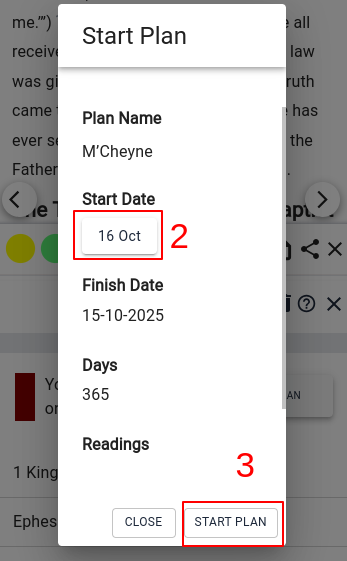
Modify plan applies only to plans that have not yet started