Read Bible
To access the Read Bible feature, the user has to click on the Read card on the Home page or click on Menu and select Read Bible.
- The user can choose the desired language and version from the version drop-down menu (1) and select the book and chapter from the book drop-down menu (2).
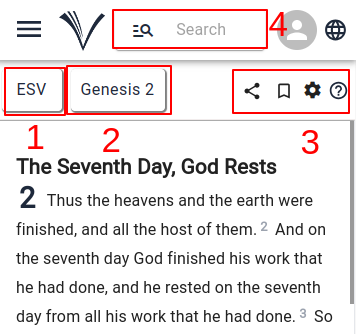
The user has the options to share and bookmark chapters and access settings menu (3).
The user can search Bible chapter, verse, passage and keyword (4).
Search Bible Reference
A user can quickly look up specific chapters, verses, paragraphs or keywords on the Read Bible page by clicking the search icon.
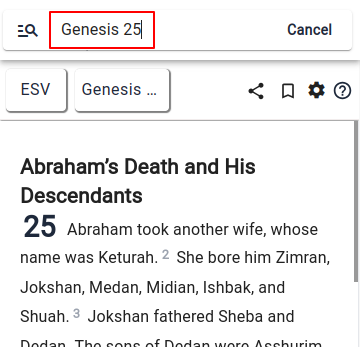
- In order to locate a certain chapter, the user must click the search button and enter the chapter number (for example, Genesis 25) in the search tab. This will navigate to the Read Bible page's Genesis 25.
- The user can search for a particular verse by entering its number in the search area and selecting the search button. This will lead them directly to the verse, such as John 15:12.
- In the same way, to locate a passage, the user needs to type the passage's reference (such as Matthew 5:1–12) into the search field and then click the search icon to get to that particular passage.
- To find any keyword, simply input the word into the search field and then click on the search icon. (for example, Moses, baptism).
Chapters, verses, passages and keywords are searchable in selected local languages as well.
Features
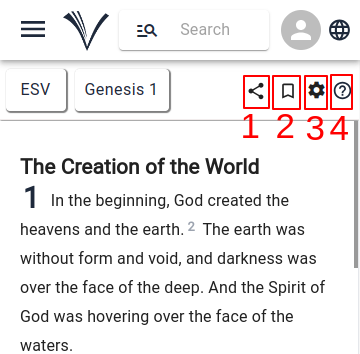
- The user must click the share icon (1), copy the URL by choosing copy to clipboard (2), and then share the bible chapter, passage, or verse on other platforms such as Facebook, Whats App, Email, Twitter and LinkedIn.
- The user can Bookmark chapters he is reading by clicking on the bookmark icon (2) for reading later.
- Users can customize their reading experience by using the Settings menu while they are reading (3).
- Clicking on the help icon (4) allows the user to access the user manual page for Read Bible.
Settings
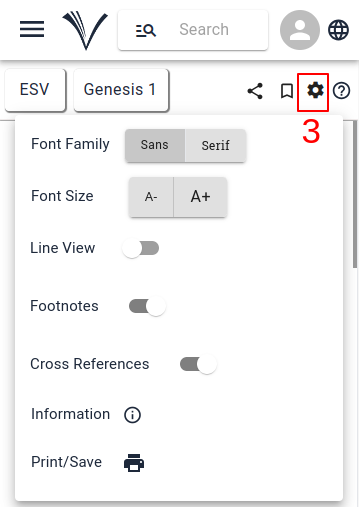
The user can choose the font, adjust the font size and read the passage in line view by clicking on the settings icon.
When studying the Bible, users can choose to turn the cross-reference and footnotes on or off.
The user can find the details for the resource by clicking on the Information icon.
To print or save the current chapter as a PDF document, the user can click on the Print icon.