Study Bible
The Study Bible is accessible through the Menu on the homepage as well as from the Study Bible index.
Top navigation bar
On the Study Bible page, the user has access to various features.
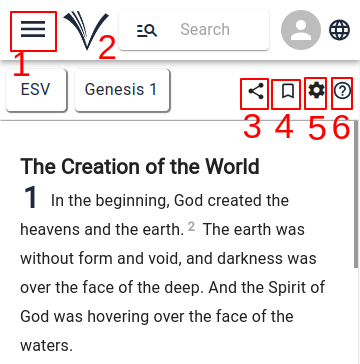
- By clicking at (1), the user can access menu with features
- Clicking on the vachan logo the user can go back to Home page(2)
- Share (3)
- Bookmarks (4)
- Settings with variety of options (5)
- Clicking on the help icon (6) allows the user to access the user manual page for Study Bible.
Bottom navigation bar
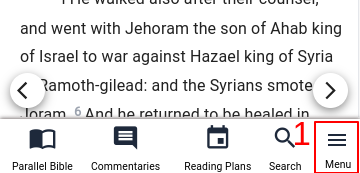
A number of features are accessible from the bottom navigation bar: Parallel Bible, Commentaries, Reading Plans, Search Bible and Drawer menu (1) with various features.
The user can also view their browsing history by clicking on the history icon.
Drawer Menu
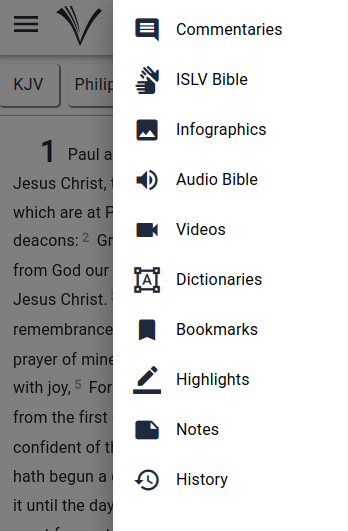
The user needs to click on the Drawer menu (1) to access Commentaries, ISLV Bible, Infographics, Audio Bible, Videos, Dictionaries, Bookmarks, Highlights, Notes and History.
The users can study the Bible of their choice in single pane view and parallel view.
Single Pane View
All additional features open within a single view from the study bible page.
To access the Bible and start reading, the user should follow these steps:
Choose the desired language and version from the version drop-down menu (1).
Select the Book and chapter from the book drop-down menu (2).
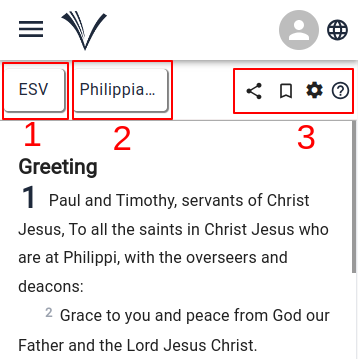
- On the Study Bible page, the user has the options to Search Bible passage, Bookmark chapters, choose the font, go to compare versions, share the chapter with others and access to other features (3).
Parallel View
To utilize the Parallel Bible feature and read multiple versions at the same time, the user can follow these steps:
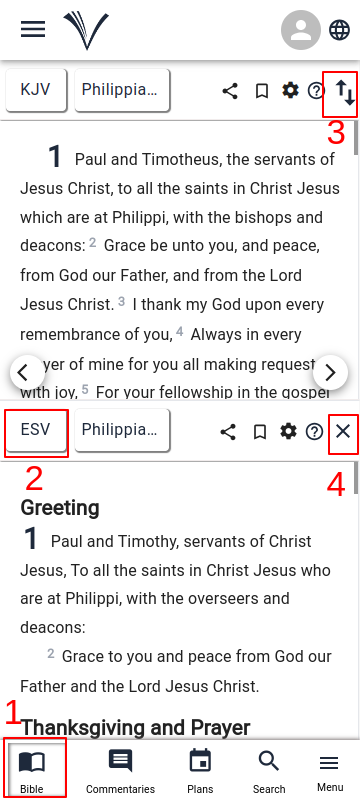
- Click on the Parallel Bible icon (1) located at the bottom navigation bar.
- Use the version drop-down (2) to select the desired language and version
- When the Parallel Bible view opens, it will automatically synchronize the Bible book, chapter, and scroll position, if available.
- The users can disable this synchronization by clicking on the parallel scroll icon (3) located at the top of the page.
- The user can click on the close button (4) in order to close the parallel view.