Website Navigation
Landing Page
On visiting the website VachanOnline.com, on a mobile device, the browser will open up the landing page as shown below.
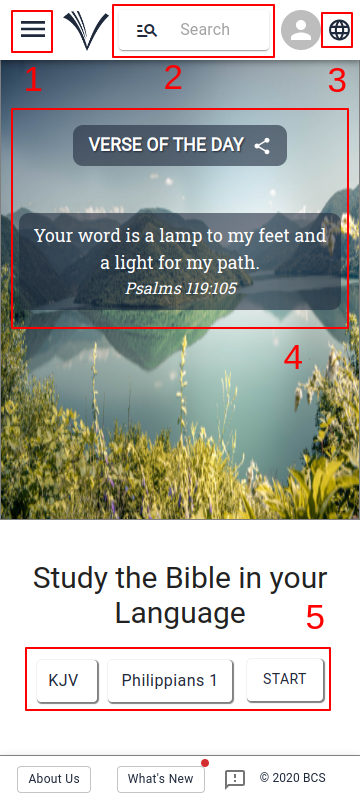
From here the user can access the following features:
Menu with various features
To access various features from the landing page, click on the Menu (1).
The user can also access the user guide and feedback form from here.
Search Bible Reference
A user can quickly look up specific chapters, verses, paragraphs or Keywords on the Home page by clicking the search icon (2).
Clicking on (3) enables the user to select the language, choosing between English, Hindi, Kannada and Malayalam.
Clicking at (5) the user can navigate to study bible page.
Multi Language UI
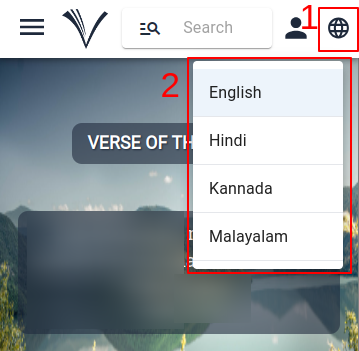
The website offers multi language functionality in English, Hindi, Kannada and Malayalam. The users can click on the icon (1) and select their preferred language (2). The user interface adapts accordingly to display content in the chosen language.
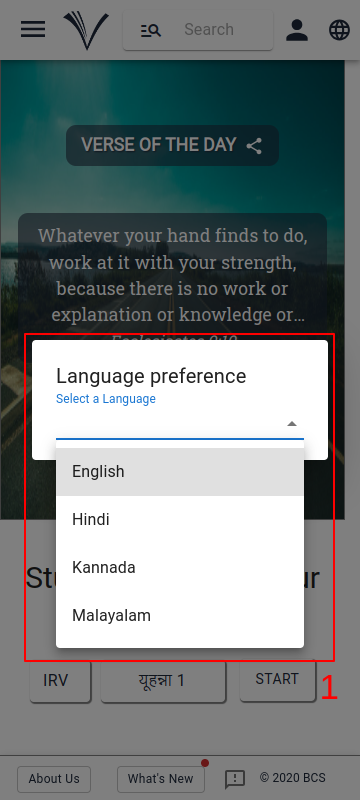
For first-time visitors, upon accessing the website, a dialogue box appears presenting the option to select a language preference (1). Once the user selects their preferred language, the UI adjusts accordingly. The user interface will automatically appear in the language that was previously selected on every visit to the website.
Verse of the day
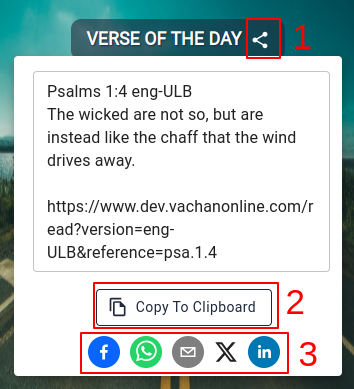
Every day, a new verse is featured on the landing page, available for users to share with friends and family. To share the verse, users simply click on the share icon (1) next to it and then select the "copy to clipboard" (2) button. A confirmation message will appear, indicating that the verse has been copied.
Users can share verses on platforms like Facebook, WhatsApp, Email, Twitter, and LinkedIn. To post and share, users need to click on the share icon (1), select a platform from (3), and follow the instructions.
The shared link directs recipients to the specific verse of the day, where they can also choose to read the entire chapter by clicking on a "Read more" button.
When the verse of the day is clicked, it opens the Bible reading page with that reference.
Easily access features with a click
As the user scrolls through the landing page, they can access listen, watch, read, and view cards.
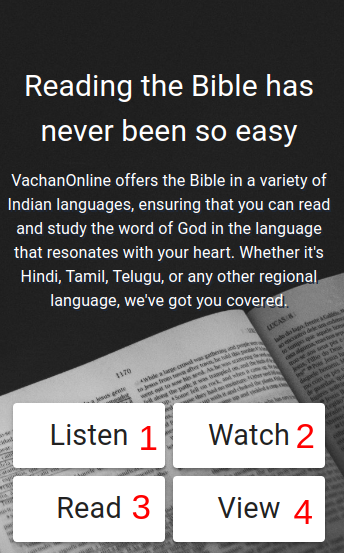
To start using click on the cards provided.
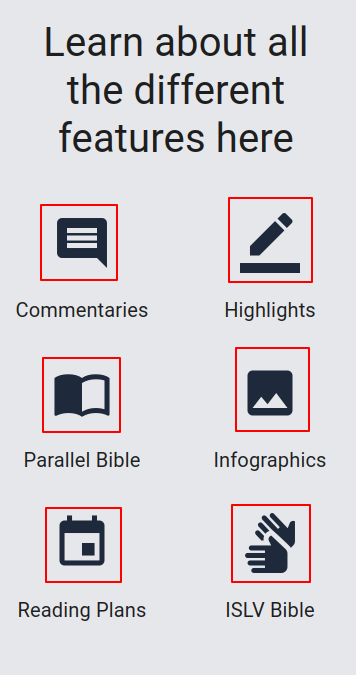
There are links to features that users can access by clicking on them.
Blogs
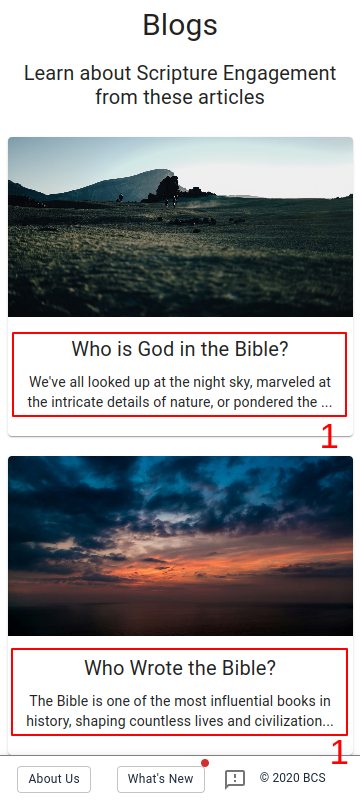
At the bottom of the homepage, users will find a section for blogs. To access this section, they can click on the title of any blog (1). This action will open the respective blog page. From there, users have the option to return to the blog section or navigate back to the VachanOnline website.
Footer
At the bottom of the page in the footer also there are some links as described below.
Subscription to News Letter
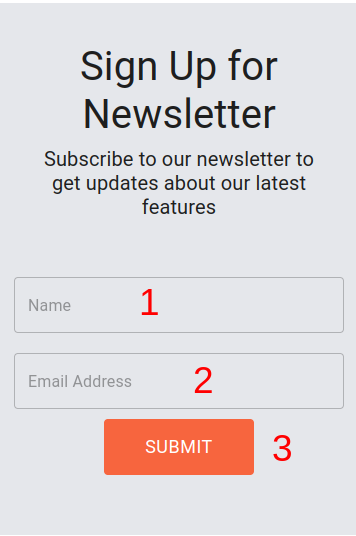
To subscribe to the newsletter, users can enter their name (1) and email address (2) in the provided subscription box and click on the Submit button (3) . Once subscribed, they will receive regular updates, news, and information directly to their email inbox.
Discover VachanGo: Download the App from Google Play Store!
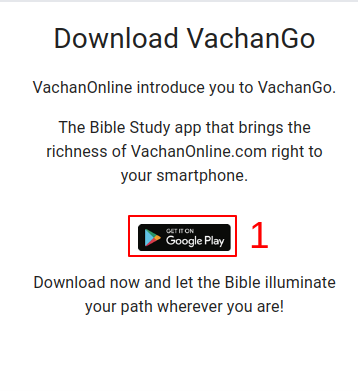
Users can explore the VachanGo app by downloading it from the Google Play Store. Click on the provided link (1) to access the app's page on the Play Store. From there, users can download the app to their device and start exploring its features and content.
Additional links
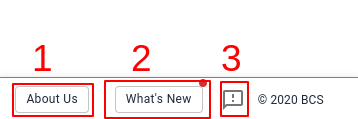
About Us (1)
What's new (2)
Feedback (3)